It’s our job to help inform and educate users, advertisers, partners
and opinion leaders about the benefits of Google’s products, our
distinctive company culture/values, and our approach to the big public
policy issues of the day. We are looking for quick-witted,
entrepreneurial and intellectually curious people to join the team.


Custom Search
Showing posts with label Internet Tips. Show all posts
Showing posts with label Internet Tips. Show all posts
19.10.10
Internet Banking In Nigeria
Internet banking termed as E-banking refers to the effective deployment of IT by banks. E-banking is about using the infrastructure of the digital age to create opportunities -both local and global. E-banking enables the dramatic lowering of transaction costs, and the creation of new types of banking opportunities that address the barriers of time and distance. Banking opportunities are local, global and immediate in E-banking.
The benefit of Electronic banking compasses a broad range of functions and include:
Electronic mail (email) improves communication between individuals and the bank, within the bank, with the bank and external parties and between banks.
The availability of online information provides bankers and customers with a powerful vehicle for research.
Electronic mail (email) improves communication between individuals and the bank, within the bank, with the bank and external parties and between banks.
The availability of online information provides bankers and customers with a powerful vehicle for research.
19.9.10
WEBSITES THAT PROVIDES SHORT URL
URL shortening is a technique on the World Wide Web where a provider makes a web page available under a very short URL in addition to the original address
1. Short Url : ShortURL is a free URL forwarding service (a.k.a URL redirection) allowing anyone to take any existing URL and shorten it. Just type/paste a URL in the box above to shorten it and the short URL will forward to the long one, and it never expires -- lasts forever
2. bit.ly :Shorten,Share and Track your Links
3.http://is.gd/ Shorten long web addresses quickly and easily, with no registration required.
4.http://tiny.cc/ Create a short and memorable URL plus get traffic statistics on how many people clicked your tinylink. Hide URL, URL redirect, search URL.
5.http://metamark.net/ Short URL redirection service. Make a long URL short with this service.Metamark was created as a free service to make posting long URLs easier
6. http://notlong.com/links/ The free web sites below can take a long URL and give you back a shorter URL without requiring registration. Since these sites forward a click from one link
7. http://tinyurl.com/ Are you sick of posting URLs in emails only to have it break when sent causing the recipient to have to cut and paste it back together? Then you've come to the right place. By entering in a URL in the text field below, we will create a tiny URL that will not break in email postings and never expires
5.9.10
How to save a document or webpage as PDF
Read this tutorial if you want to
a.save a webpage as a PDF file
b.save an MS Word (DOC) or Publisher (PUB) document as a PDF file
c.save any other file as a PDF file
What you need■
CutePDF : an open-source PDF writer (yes its free)
Download CutePDF from cutepdf.com. Click on the Free Download link and install it.
Verify the install■
To verify if CutePDF has been installed as a printer, click on the Start button and click on Printers and Faxes. You should see the CutePDF Writer icon there.

How do I save a webpage as PDF
■From your web browser, go to File → Print
■In the dialog box, change the printer Name to CutePDF Writer and click on the OK button
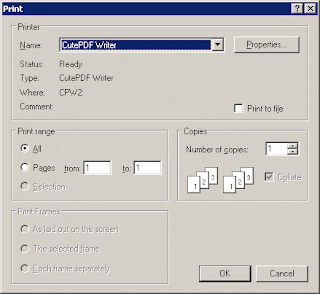 ■Save it in any location you want.
How do I save an MS Word DOC and PUB file as PDF
■Open the document and go to File → Print
■In the dialog box, change the printer Name to CutePDF Writer and click on the OK button, as above.
■Save it in any location you want.
a.save a webpage as a PDF file
b.save an MS Word (DOC) or Publisher (PUB) document as a PDF file
c.save any other file as a PDF file
What you need■
CutePDF : an open-source PDF writer (yes its free)
Download CutePDF from cutepdf.com. Click on the Free Download link and install it.
Verify the install■
To verify if CutePDF has been installed as a printer, click on the Start button and click on Printers and Faxes. You should see the CutePDF Writer icon there.

If it is missing, do a clean re-install of CutePDF.
■From your web browser, go to File → Print
■In the dialog box, change the printer Name to CutePDF Writer and click on the OK button

How do I save an MS Word DOC and PUB file as PDF
■Open the document and go to File → Print
■In the dialog box, change the printer Name to CutePDF Writer and click on the OK button, as above.
■Save it in any location you want.
4.9.10
HOW TO LOOK UP TELEPHONE NUMBERS LOCATION
Have you ever wondered how possible it is to track the location of your callers telephone Number.Knowing the Name of your caller and the exact Location at that moment.
I was able to look up some websites that offer free information about telephone Number primary location.its location such as State and City,Phone type (Mobile or Land Phone) Provider (Telephone Provider).
Below is two of the best i got.
Telephone Lookup : this provides basically the state and city,telephone type and Provider.With it,you can know the location of your caller by inputting the 10 digits (usa number) in the provided search box.
Phone Detector: this provides same service as telephone lookup by with a premium service,which provides,the callers Name and contact address.The premium membership fee is $39.95
HOW TO RECORD YOUR VOICE ON A COMPUTER
Perhaps there are so many things we can do on the computer that we merely know.Some of the beautiful things it avails us is the on screen keyboard if your normal keyboard is malfunctioning and voice recording on the computer itself
Things you need to record your voice on the computer is a Microphone recording software (optional) if you dont have an inbuilt mic on your system mostly desktop system.

TO RECORD YOUR VOICE ON A COMPUTER
Its basically a five step procedure of less.
1. Go into the Start menu.
2. Go to All Programs and follow the link to Accessories.
3. Select Entertainment and choose Sound Recorder.

4. Click on the turqoise round button to start your recording, and to stop, press the black square button.
5. You can then choose to save the file, or "save as", edit the file or apply some simple effects
27.8.10
Top 10 Best Internet Explorer Add-Ons
I was able to cull out some of the best internet explorers Add-Ons that you can use.
here is my combined list of internet explorer add-ons.
1. IE7Pro - Don't let the name fool you, IE7Pro works with Internet Explorer 7, or 8, and it packs more features into a single Add-on than any three other plug-ins combined
2. Web of Trust - Similar to the McAfee Site Advisor recommended in our Internet Safety Guide, the Web of Trust (WOT) Add-on integrates with search results pages and rates each link for safety. Green means safe, yellow means caution, and red means don't go there
3. LastPass - While any modern browser can remember your website passwords, the LastPass Add-on makes that process a whole lot safer by encrypting your saved passwords in its servers, rather than in IE's (relatively insecure) password file
4. Open Last Closed Tab - Says what it does, does what it says. This add-on can resurrect any tab you've opened and closed during your current browsing session -- including those tabs you shut down accidentally
5. Yoono - Tired of checking Twitter, Facebook, LinkedIn, AIM, MSN Messenger, Yahoo Messenger, Skype and Google Talk for all the myriad possible incoming messages you could receive at any moment? Yoono integrates all these services into a single browser-based client, letting you see (and send) Twitter replies, Facebook updates, and Skype chats in a single, simultaneous stream.
6. Shareaholic - Submit stories to Digg, add links to Delicious, or share an item on Facebook all with a single Add-on.
7. Login Using BugMeNot - The perfect Add-on for all those services youdon'twant to join, Login with BugMeNot will use anonymous, public credentials to sign you into any major site on the web
8. Define with Wikipedia - Another straightforward tool, the Define with Wikipedia IE Add-on searches Wikipedia for a definition or article that explains any text you highlight on a webpage
9. Chrome Frame for IE - The most controversial add-on on our list, Chrome Frame for IE converts your Internet Explorer Browser into a virtual instance of Google Chrome
10. Weather from Bing - Simple, but for those of us that check the web before leaving the house, the Weather from Bing Web Slice keeps your current, local forecast present in your browser at all times
There are dozens of additional Internet Explorer Add-ons, many suited to specific tasks or hobbies. Moreover, there are whole customized versions of Internet Explorer 8. AOL and MySpace
here is my combined list of internet explorer add-ons.
1. IE7Pro - Don't let the name fool you, IE7Pro works with Internet Explorer 7, or 8, and it packs more features into a single Add-on than any three other plug-ins combined
2. Web of Trust - Similar to the McAfee Site Advisor recommended in our Internet Safety Guide, the Web of Trust (WOT) Add-on integrates with search results pages and rates each link for safety. Green means safe, yellow means caution, and red means don't go there
3. LastPass - While any modern browser can remember your website passwords, the LastPass Add-on makes that process a whole lot safer by encrypting your saved passwords in its servers, rather than in IE's (relatively insecure) password file
4. Open Last Closed Tab - Says what it does, does what it says. This add-on can resurrect any tab you've opened and closed during your current browsing session -- including those tabs you shut down accidentally
5. Yoono - Tired of checking Twitter, Facebook, LinkedIn, AIM, MSN Messenger, Yahoo Messenger, Skype and Google Talk for all the myriad possible incoming messages you could receive at any moment? Yoono integrates all these services into a single browser-based client, letting you see (and send) Twitter replies, Facebook updates, and Skype chats in a single, simultaneous stream.
6. Shareaholic - Submit stories to Digg, add links to Delicious, or share an item on Facebook all with a single Add-on.
7. Login Using BugMeNot - The perfect Add-on for all those services youdon'twant to join, Login with BugMeNot will use anonymous, public credentials to sign you into any major site on the web
8. Define with Wikipedia - Another straightforward tool, the Define with Wikipedia IE Add-on searches Wikipedia for a definition or article that explains any text you highlight on a webpage
9. Chrome Frame for IE - The most controversial add-on on our list, Chrome Frame for IE converts your Internet Explorer Browser into a virtual instance of Google Chrome
10. Weather from Bing - Simple, but for those of us that check the web before leaving the house, the Weather from Bing Web Slice keeps your current, local forecast present in your browser at all times
There are dozens of additional Internet Explorer Add-ons, many suited to specific tasks or hobbies. Moreover, there are whole customized versions of Internet Explorer 8. AOL and MySpace
19.8.10
How to Check Your PC Configuration
INSTRUCTIONS
1. Click "Start," "All Programs."
2. Click "Accessories," "System Tools."
3. Select "System Information." The System Information dialog box will open and display your PC's "System Summary" configuration.
4. Click on the "+" symbol next to "Hardware Resources," "Components," "Software Environment" or "Internet Settings" to view specific information about your PC's components.

5. Click on the individual headings under the different categories to view additional configuration information about the components.
6. Click "File," "Print." Click on the circle next to "All" under the heading "Page Range" to print your PC's configuration.
7. Click "File," "Exit" to close the System Information dialog box.
1. Click "Start," "All Programs."
2. Click "Accessories," "System Tools."
3. Select "System Information." The System Information dialog box will open and display your PC's "System Summary" configuration.
4. Click on the "+" symbol next to "Hardware Resources," "Components," "Software Environment" or "Internet Settings" to view specific information about your PC's components.

5. Click on the individual headings under the different categories to view additional configuration information about the components.
6. Click "File," "Print." Click on the circle next to "All" under the heading "Page Range" to print your PC's configuration.
7. Click "File," "Exit" to close the System Information dialog box.
18.8.10
How to use an On-Screen Keyboard on your Computer.

Step 1
The first step is to use your PC mouse and slide the cursor over to the "Start Button" and left click on it.
Step 2
You slide the cursor up to "All Programs" with the mouse and left click on it. Once you have 'all the programs' on the monitor screen, slide the cursor up to the "Accessories" program and left click the mouse on it.
Step 3
You will then see a sub list of choices on the right. Move the cursor directly to the right (usually,) choose "Accessibility." and left click on it. This will give you a few choices, one of which is "On-Screen Keyboard. You have an On-Screen Keyboard displayed on the top of whatever document or page you are working on.
Step 4
Now the On-Screen Keyboard is on your screen... you can move the keyboard around by "click and drag" so it is out of your working area.
Subscribe to:
Posts (Atom)